
"Custom fields" is a common term in ecommerce tools for adding configurable, flexible content sections to product pages, things like care instructions, warranty text, or compatibility notes that don't fit a standard description field. WriteText.ai handles this through its templates system. While it works differently from traditional custom fields, it achieves the same outcome: structured, reusable content sections across product pages.
How WriteText.ai structures product content
In WriteText.ai, product page content is built through templates. A template is a collection of blocks, each controlling one section of the generated output. What it covers, what format it uses, and where it sits in the sequence. You can configure heading levels, text style, word count, layout, and per-section instructions for each block individually.
Built-in blocks cover standard content types: product title, subtitle, introduction, features, advantages, benefits, use cases, technical specifications, FAQ, and call-to-action. You can use as few or as many as your product pages need, and reorder them freely by dragging.
At the template level, you can also set overall instructions — guidance that applies consistently across all blocks without repeating it in each one.
For full details on built-in blocks and all available settings, see the Templates guide.
The two custom block types
Beyond the built-in blocks, WriteText.ai gives you two block types specifically for custom content. Both can be added multiple times within a single template, unlike the standard blocks which appear once each.
Custom prompt block (Pro feature)
The custom prompt block lets you define an entirely new content section, one that isn't covered by any standard block. You write the prompt, and WriteText.ai generates the section based on it.
This is the closest equivalent to custom product fields in WriteText.ai. Use it when you need content like:
- Care or maintenance instructions
- Compatibility or surface suitability notes
- Sustainability or sourcing information
- A comparison with a previous mode
- Any other topic specific to your catalog
When generating from a custom prompt, WriteText.ai draws on all available product data including the product name, attributes, keyword analysis, images, and research results. The output is contextualized to the product, not generic filler.
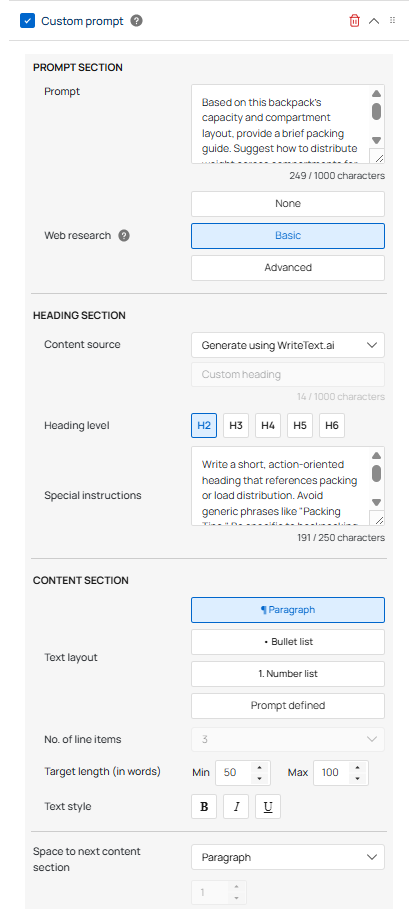
Settings available on a custom prompt block:
- Prompt — The instruction you write to define what the section should cover.
- Supplement with real-time web research — Controls how much external research the AI performs. Options are None, Basic, or Advanced (deeper research with higher accuracy and source references).
- Text layout — Paragraph, bullet list, or numbered list. You can also select Prompt defined to specify the format directly in the prompt text itself.
Custom prompt blocks are reusable across every product that uses the template, you define them once, and they generate unique content per product automatically.
Static content block
The static content block inserts fixed text directly into the template output. The AI never rewrites or varies it, what you type is what appears on every product using that template.
Use this for content that must stay identical across your catalog:
-
Disclaimers
-
Warranty language
-
Return policy or shipping notes
-
Any standard boilerplate
There is no prompt or research setting on this block. It is write-once, appear-everywhere.
Setting up your template
Templates are managed in the WriteText.ai backend at https://platform.writetext.ai under the Templates section.
You can either clone an existing industry template (available for fashion, electronics, home goods, health and beauty, sports, and media) or create one from scratch. Once you are in the template editor, you add and configure your blocks, set any overall instructions, and arrange blocks in the order you want.
While setting up or editing a template in the WriteText.ai backend, a live preview shows how the content blocks will appear on the product page. The layout and structure are visible before any content is generated or transferred.
*Platform note: Shopify uses a single product description field, so one template covers the full output. WooCommerce and Magento support both short and long description fields, so you can set up a short description template, a long description template, or both.
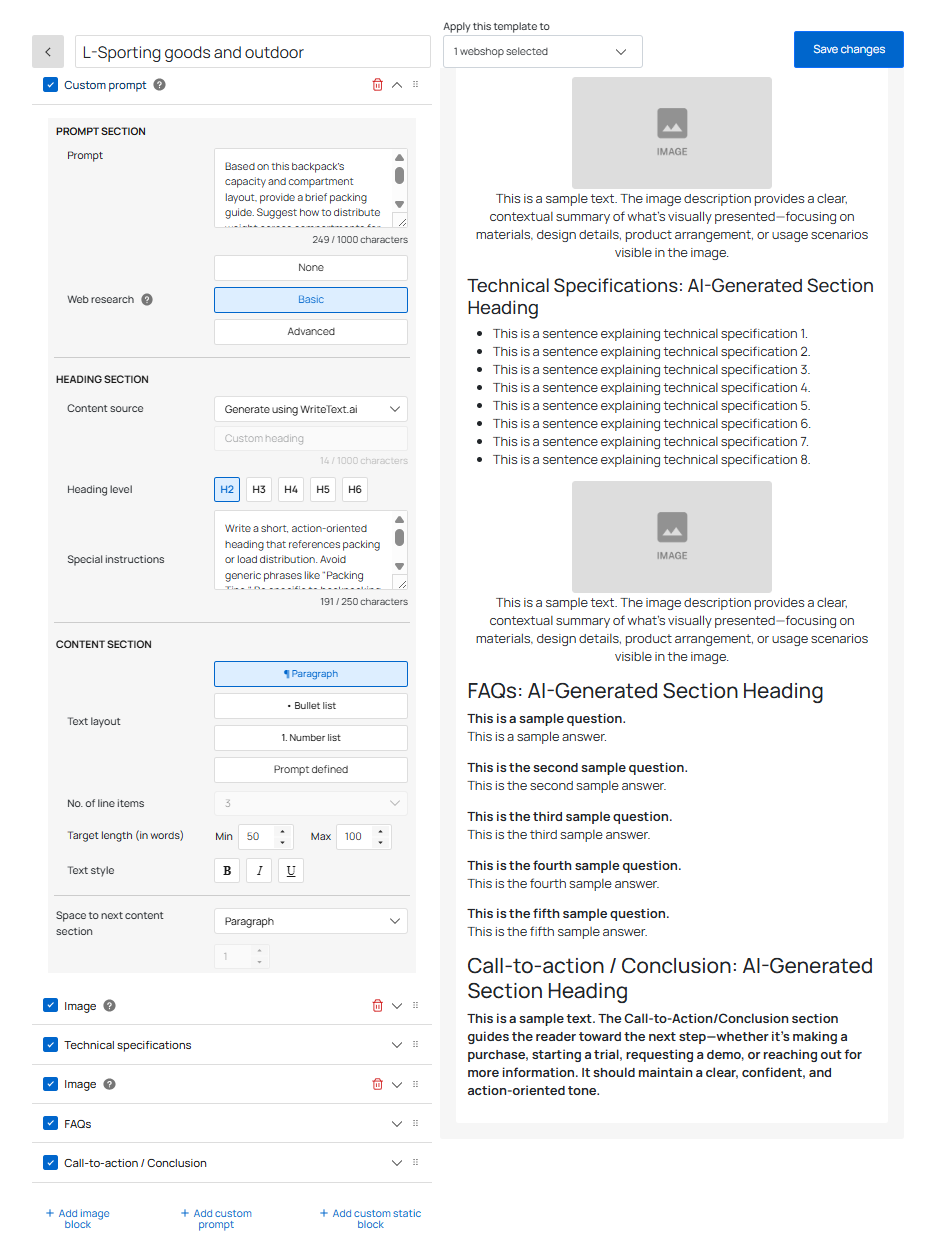
Before rolling a new template out to your full catalog, generate content for one product first, publish it, clear your browser cache, and review how it appears to visitors. Adjust the template if needed, then regenerate.
Once you are satisfied, link the template to your webshop on the Linked webshops page. This makes it selectable in the plugin during text generation. A template must be linked before it can be used.
Generate and transfer
Once your template is set up and linked, WriteText.ai generates all configured blocks as a single structured output. Transferring it to your store pushes the content to the correct fields in one action without requiring manual field mapping for each product.
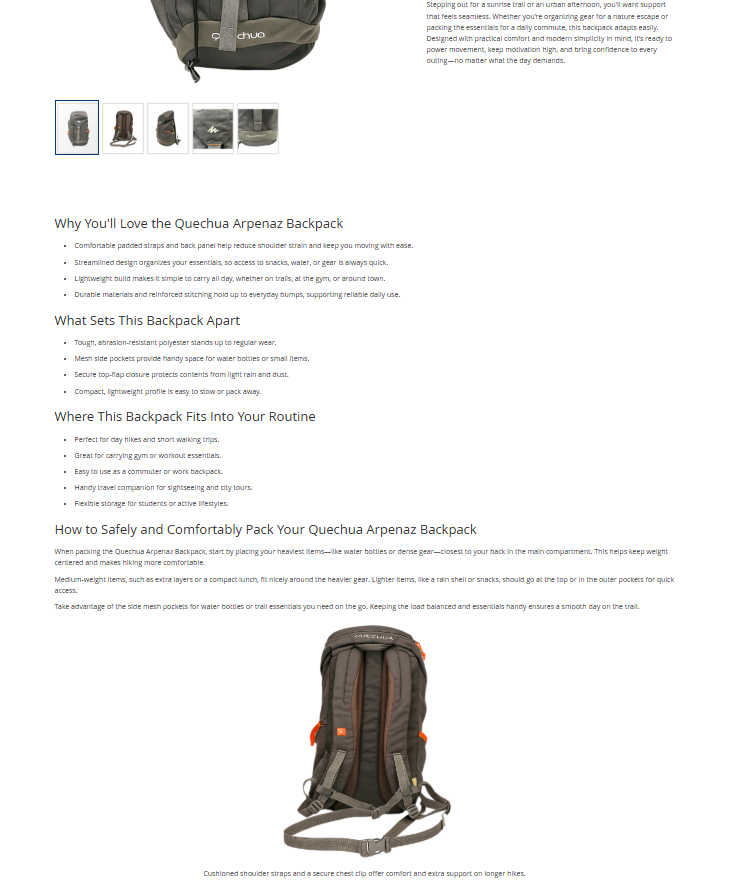
This is how your product page will look on your webshop, structured exactly as shown in the preview above.
No developer required
The entire template setup happens inside the WriteText.ai platform at platform.writetext.ai. Adding, removing, or reordering blocks is done by drag and drop. Special instructions and custom prompts are written in plain language. There is no code to write and no technical configuration required to get a working template.
One setup, running for every product
Once a template is configured and linked to a webshop, it applies automatically to every product assigned to it. There is no additional field mapping per product, and all content setup stays in one place inside the platform. When content is generated and transferred, it goes directly into the correct fields on the product page.
Faster setup, faster delivery
Because the block system requires no custom development to configure or use, setup time is significantly shorter than building equivalent functionality through traditional custom fields. Content can be generated and transferred to your store immediately after a template is linked, no waiting on developer resources or field mapping work.
When you do need developer access
For stores that want frontend layout control, rendering blocks in columns, applying custom spacing, or integrating block content into a specific theme structure, each block is automatically assigned a CSS class. A developer can use those classes to apply styling. Each block also has a block ID that can be used to pull generated content programmatically through the WriteText.ai API.
More about CSS classes and block IDs
This section is primarily for developers. Non-developers can use WriteText.ai without any of this.
Every block in a WriteText.ai template is automatically assigned a CSS class and a block ID. These are part of the HTML output and do not affect content generation.
CSS classes give front-end developers precise control over where and how each block appears on the storefront. For example, the features block gets the class wtai-features-section, the first image block gets wtai-image_1-section, and so on. A developer can use these class names to override default styling, reposition blocks, or apply custom formatting such as replacing standard bullet points with checkmark icons, or floating a specifications block beside an image.
CSS class-based styling works with WooCommerce, Shopify, and Magento.
Block IDs are used to map WriteText.ai content to specific elements in a page builder. To link a block, hover over it in the template editor to reveal the block ID, copy it, and paste it into the corresponding element in your page builder. Page builder integration works with WooCommerce and Shopify, not Magento.
WriteText.ai supports five layout and publishing approaches in total, ranging from plain text output (no setup required) through to full API integration for enterprise systems. Each has different complexity and platform compatibility.
For full documentation on all five methods, including the comparison table and platform-specific notes, see the Layout and Styling guide.