
Brand voice lets you define a custom tone and writing style that WriteText.ai follows when generating content. Once set up, you can link a brand voice to one or more webshops and use it as the writing reference across all content generation, ensuring consistent messaging and content consistency across your stores.
Before you begin
To build a brand voice, you'll need at least one of the following:
-
Products from a connected webshop, or a CSV file with product information (5 to 15 products)
-
A PDF file containing brand guidelines or writing samples (max. 10 MB; at least 500 words recommended)
Step 1: Go to the brand voice page
- Log in to your WriteText.ai account.
- Navigate to the Brand Voices section from the main menu.
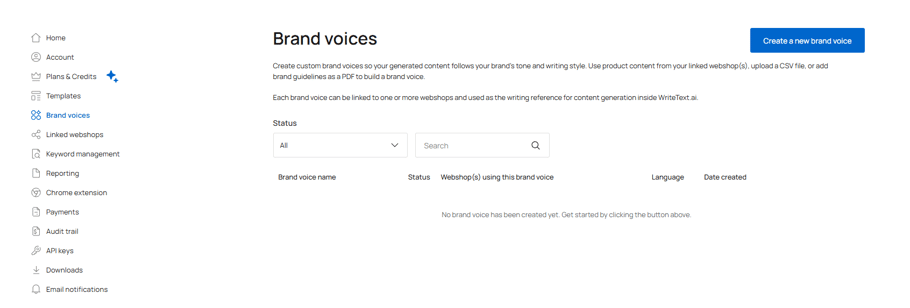
Step 2: Create a new brand voice
-
Click Create a new brand voice.
-
Enter the name of your brand voice. For this example, we will be using "Brand voice 1."
- Select which webshops will use the brand voice that you are creating.
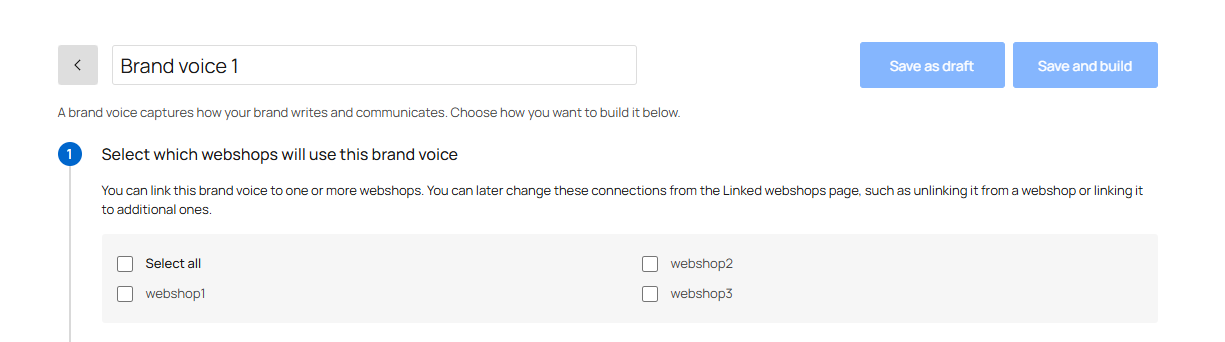
You'll be prompted to choose a build method. Select the one that fits your available content.
Option A: Build from product content
Use this method if you want WriteText.ai to learn your brand identity and tone from existing product descriptions, titles, and other text fields.
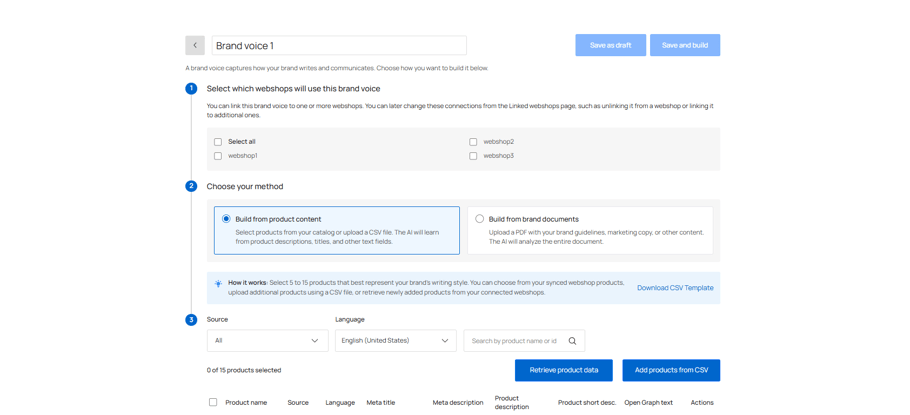
How it works:
-
Select Build from product content.
-
Choose between 5 to 15 products that best represent your brand's writing style. You can:
-
Retrieve product data from your connected webshops
-
Upload products using a CSV file
-
Select products directly from your synced webshop
*Note: This last option is only possible if you have already synced products from your webshop to WriteText.ai.
-
-
Click Save and Build.
Option B: Build from brand documents
Use this method if you have a PDF containing your branding materials, marketing copy, or other written content that reflects how your brand communicates in customer communication.
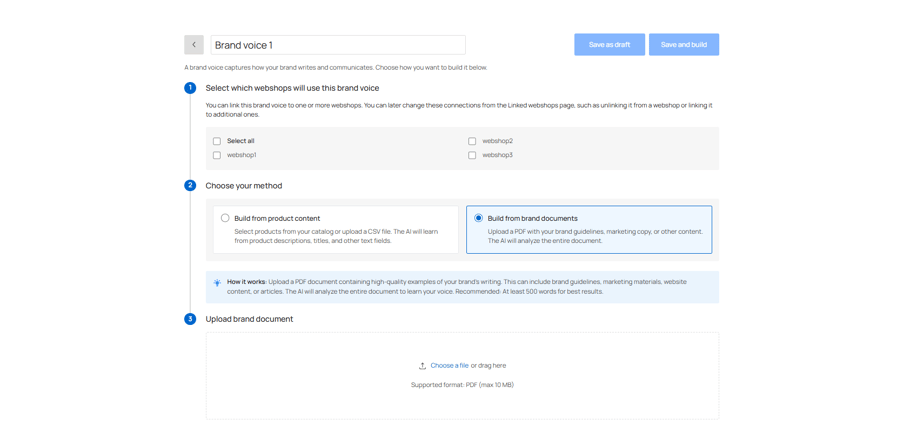
How it works:
-
Select Build from brand documents.
-
Upload a PDF document. This can include brand guidelines, marketing materials, website content, or articles.
-
WriteText.ai will analyze the entire document to learn your writing voice.
-
Click Save and Build.
*Tip: For best results, your PDF should contain at least 500 words of high-quality brand writing.
Step 3: Apply the brand voice in your shop plugin
Once your brand voice is built, you can apply it directly from your shop's backend plugin before generating content.
-
Open the WriteText.ai plugin in your shop's backend.
-
Before generating text, locate the tone and style settings.
-
Select Brand voice instead of the default Tones & Style and Audience option.

-
Choose the specific brand voice you want to use from the dropdown

-
Proceed with content generation. WriteText.ai will now follow your selected brand voice.
Managing brand voices
-
A single brand voice can be linked to one or more webshops.
-
You can create multiple brand voices for different webshops or use cases.
-
Existing brand voices are listed on the Brand Voice page with their current status and linked webshops.