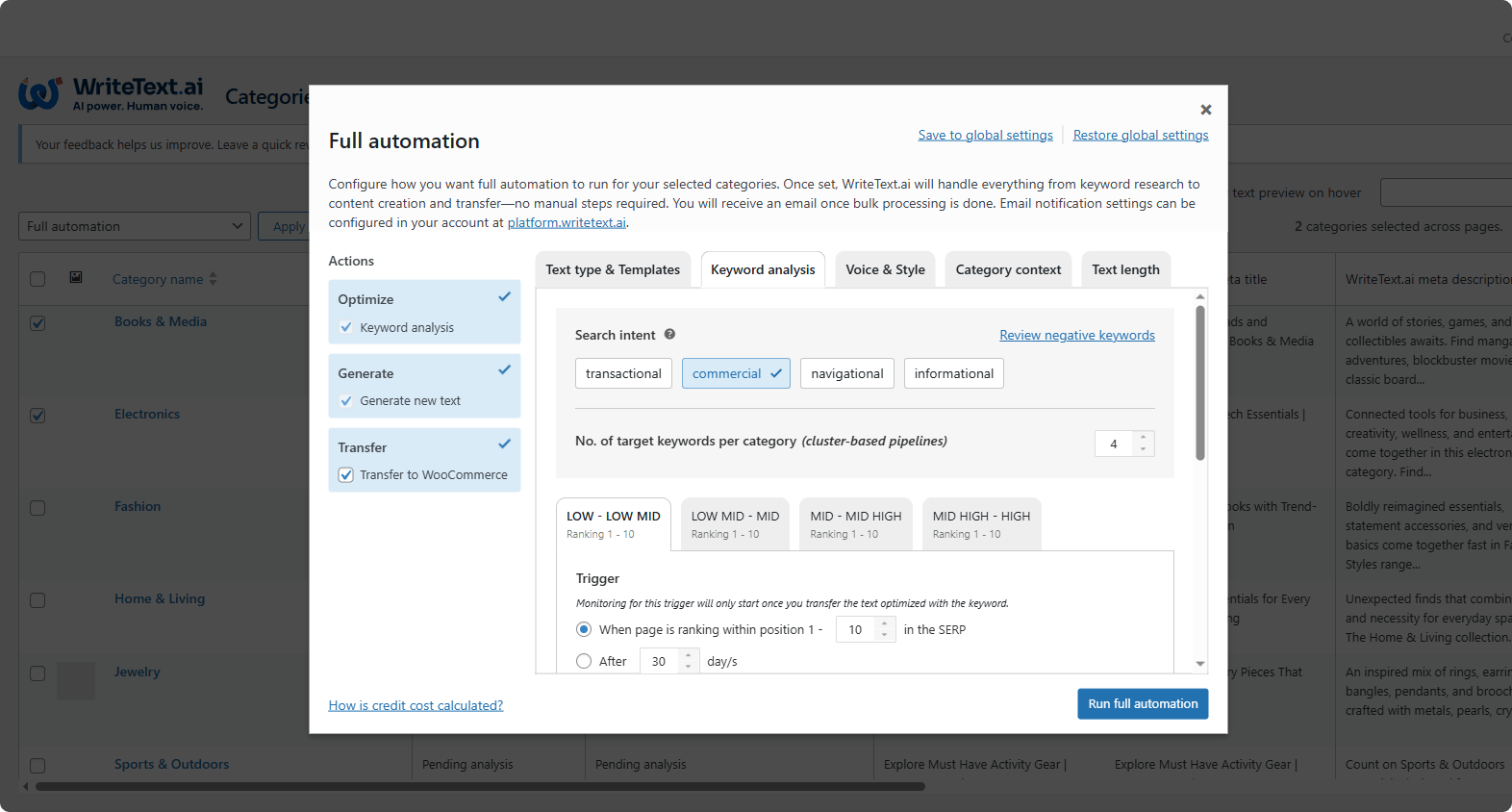
WriteText.ai lets you run keyword analysis, generate content, transfer content, and set up full automation for multiple categories at once. This article explains how to use each bulk action from the category grid.
Note: In Shopify, categories are referred to as collections. The steps below apply equally to collections in Shopify stores.
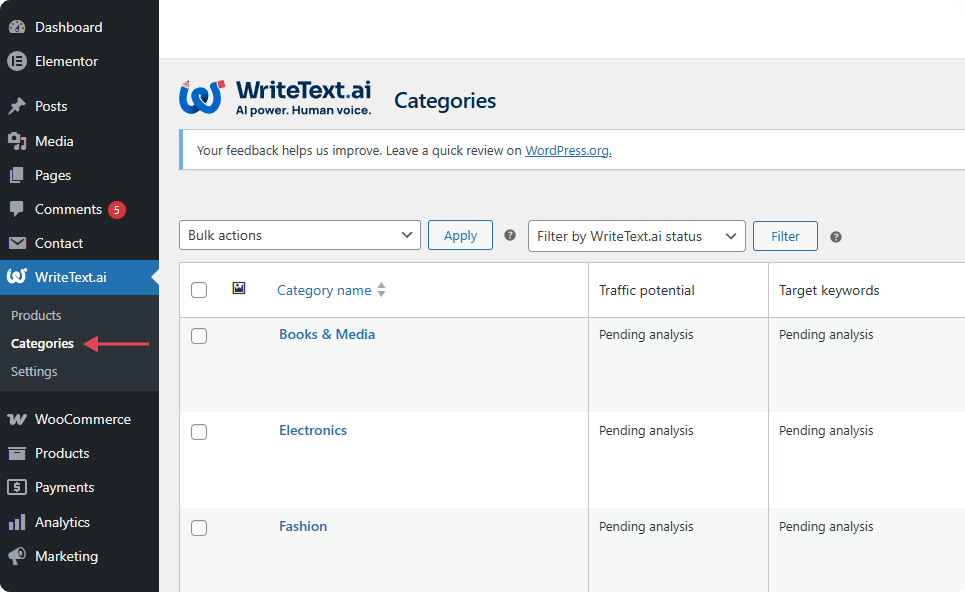
How to access the category grid
The category grid is where you select and manage categories in bulk. To open it:
- Log in to WriteText.ai and open your store.
- In the left navigation and below Products, select Categories.
The category grid will display all categories available in your store.
How to run bulk keyword analysis
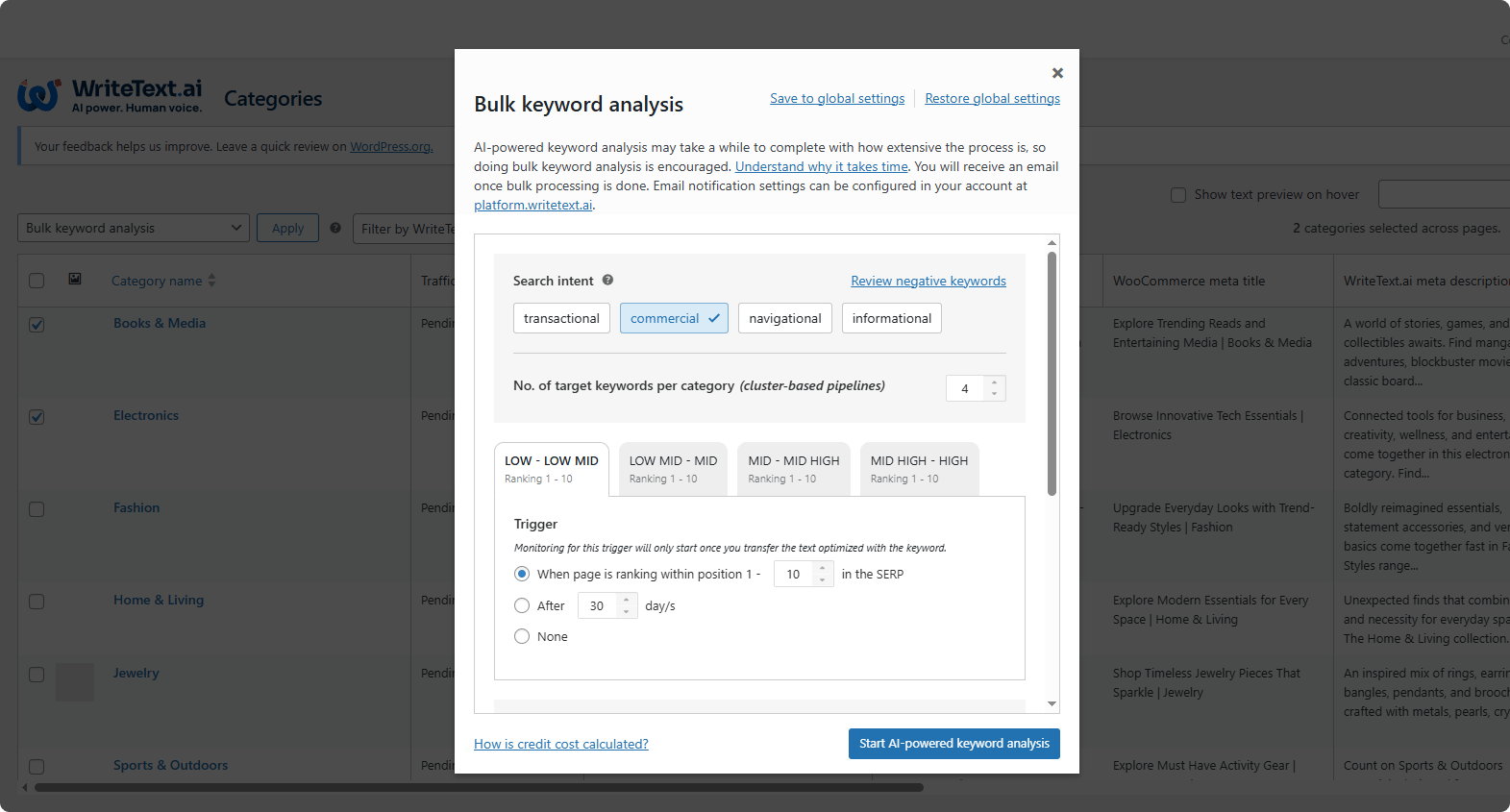
Keyword analysis identifies target keywords for each category. Running it in bulk processes all selected categories in one operation.
- Select the categories you want to analyze.
- Open the Bulk actions menu above the grid.
- Select Keyword analysis then click apply.
- Configure your settings then click "Start AI-powered keyword analysis."
Note: Running keyword analysis before generating content is not required every time, but it produces better results when keyword data is current. If a category has not been analyzed recently, running this step first is recommended.
How to run bulk generation
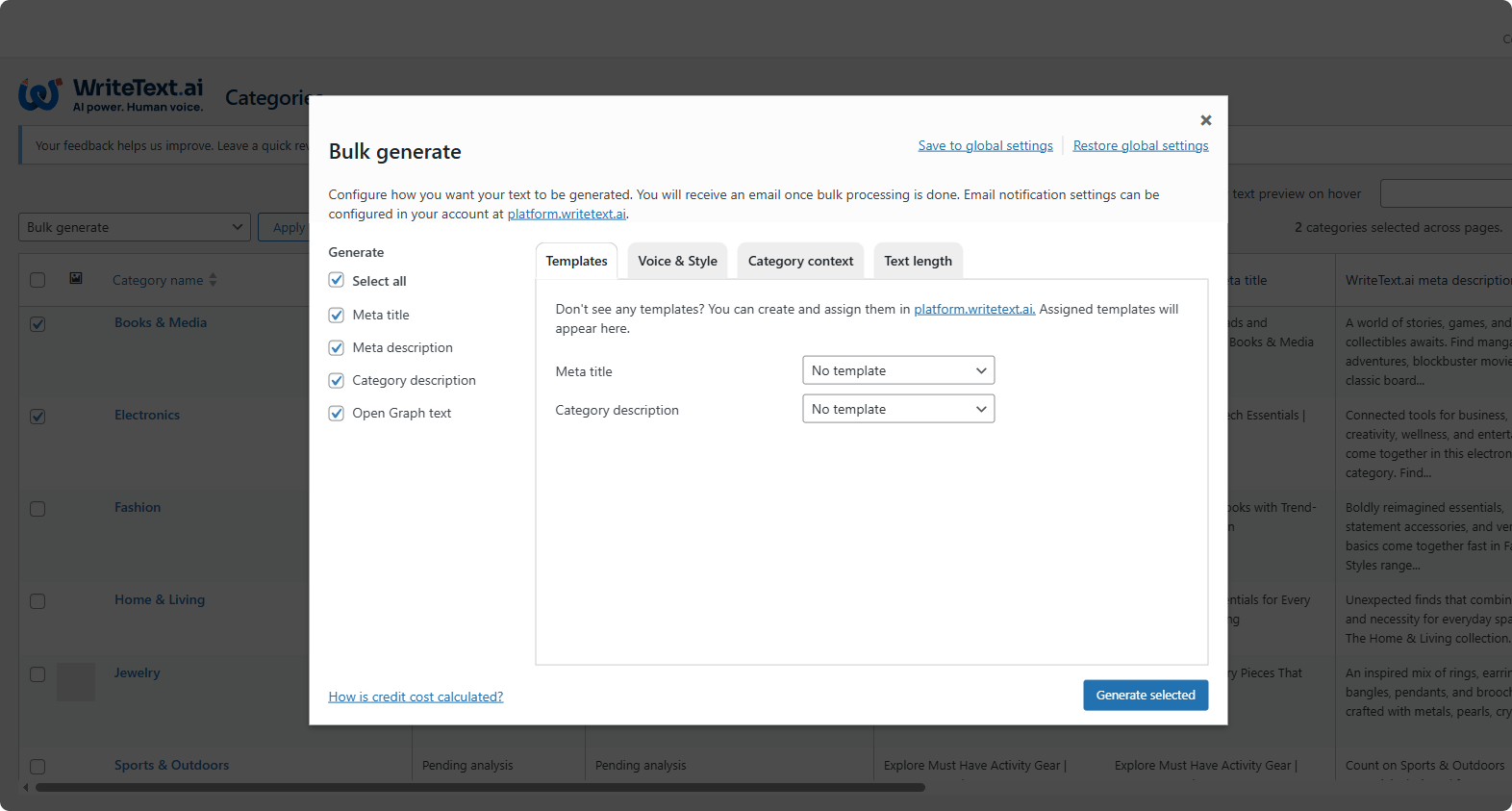
Bulk generation produces content for multiple categories at once. WriteText.ai uses each category's keyword data, its representative products, and your configured templates to generate descriptions, meta titles, meta descriptions, and Open Graph text.
- Select the categories you want to generate content for.
- Open the Bulk actions menu.
- Select Generate then click apply.
- Configure your settings based on your preferred templates, voice & style, category context, and text length.
- Click "Generate selected."
How to run bulk transfer
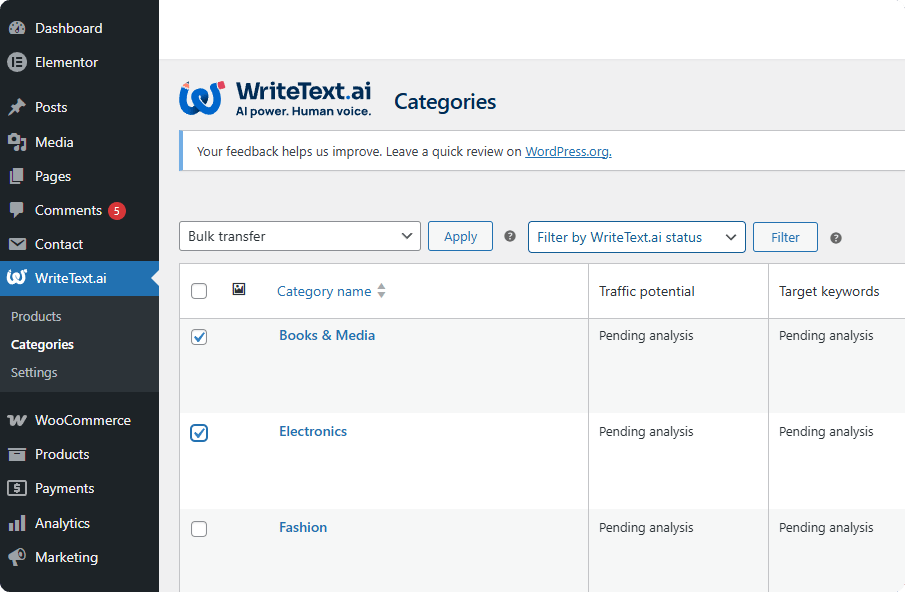
Once content has been generated, transfer it to your store for multiple categories at once.
- Select the categories with generated content you want to transfer.
- Open the Bulk actions menu.
- Select Transfer then click apply.
How to set up full automation for categories
Full automation lets WriteText.ai handle keyword analysis, content generation, and transfer for categories without manual intervention. Once configured, category content stays current as your catalog changes. The setup process works the same way as full automation for products.
- Select the categories you want to automate.
- Open the Bulk actions menu.
- Select Full automation and click apply.
- Review and confirm the automation settings then click "Run full automation".